Field Service Software That Integrates With QuickBooks: What Actually Syncs?
 OSI Affiliate Reviews DeskEditorial team
Field service platforms routinely say they “integrate with QuickBooks.” The word is doing a lot of quiet work. It can mean your invoices push into QuickBooks Online one way, that customer records move both directions, or that a support doc mentions a connector that isn’t obvious on the pricing page. Those are very different experiences when your bookkeeper sits down to close the month.
Before you spend an afternoon on demos, check three things against the exact QuickBooks edition you already pay for: which records sync, which direction they go, and whether the behavior you’re reading about applies to a new account or a legacy one. If you’re on QuickBooks Online and want transparent pricing with a documented real-time push, Jobber’s Connect tier is the clearest starting point for a small team — as long as you accept that the ongoing sync flows out toward QuickBooks, not back. If QuickBooks Desktop is non-negotiable, Housecall Pro is the better documented fit, and QuickBooks itself is a separate bill. ServiceTitan supports both editions for larger multi-trade shops, but you have to ask what your quoted package actually passes. A genuinely free start exists in Dusk FSM’s Launch plan, but its QuickBooks field-level details are something we could not verify from public documentation.
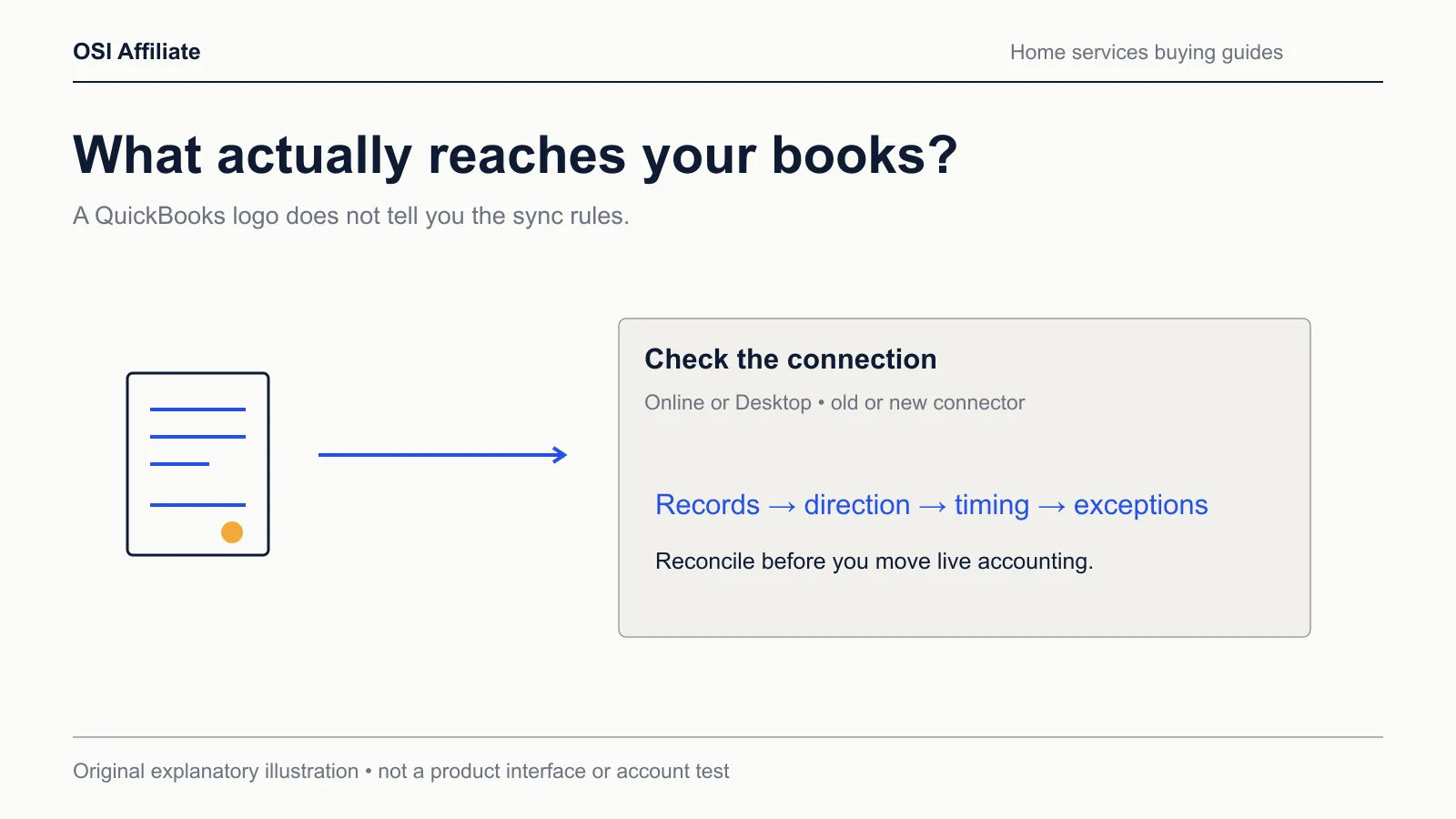
The three checks that settle most of it
You can narrow the field quickly by answering three questions.
Which edition? Some tools maintain an ongoing sync only with QuickBooks Online. Others document QuickBooks Desktop support too. If you run Desktop on purpose — plenty of trade shops do — a tool that only reaches QuickBooks Online forces you to change your accounting stack or manually export data, which defeats the purchase.
Which direction? An outward, one-way push gets invoices and payments into QuickBooks but doesn’t bring your bookkeeper’s edits back into the field tool. A change to a billing address in QuickBooks won’t update dispatch. That’s fine if you accept QuickBooks as the final bookkeeping authority and your field tool as the operational source. It is not the same as two-way integration, and headlines rarely tell you which you’re getting.
Which records? “Integrates” can mean only invoices. For real job costing or payroll you also need items, payments, timesheets, and expenses to arrive with the right mapping — income account, tax status, employee match. The more records you push, the more setup decisions and exceptions you own before it’s dependable.
Keep those checks beside you. They decide the table below.
Start here: the route map
| Your situation | Best documented starting route | Verify before you pay |
|---|---|---|
| QuickBooks Online, 1–5 users, want published pricing and a real-time outward push | Jobber Connect tier | The new sync is one-way toward QuickBooks |
| QuickBooks Desktop or Online, want both supported and outward records documented | Housecall Pro | QuickBooks is not included; exact eligible tier needs a written quote |
| Larger multi-trade shop, both editions, comfortable working from a custom quote | ServiceTitan | Ask which records and directions the quoted tier actually syncs |
| Free start, light volume, QuickBooks Online connector | Dusk FSM Launch | 25 completed work items per month cap; field-level sync parity unverified |
| Considering FieldVibe’s permanently free Solo plan | Hold and ask | We could not verify a QuickBooks connector in its public documentation |
That’s the honest shape of the decision.
Record-level compatibility: what each route actually passes
| Product | Edition supported | Direction and verified records | Unverified or unresolved |
|---|---|---|---|
| Jobber (new first-time connector) | QuickBooks Online; no ongoing Desktop connector documented | One-way Jobber→QuickBooks, real time, per the banner on Jobber’s legacy help article | Per-record field parity for edits, refunds, taxes unverified in this research; do not assume legacy two-way rules |
| Jobber (legacy connector, existing accounts only) | QuickBooks Online | Manual trigger; clients and items both directions; invoices and payments one-way Jobber→QBO; timesheets need approval and matching employee/payroll setup | Not applicable to new first-time connections; migration to new cannot revert |
| Housecall Pro | QuickBooks Online and Desktop | Outward push into QuickBooks: customer info, invoices, line items, payments; imports cover initial setup | Whether every edit syncs both directions and which Desktop versions stay current unverified |
| ServiceTitan | QuickBooks Online and Desktop listed | Both editions listed on accounting integrations page | Per-record mapping, direction, and plan gates unverified |
| Dusk FSM | QuickBooks Online listed as integration connector | Connector presence only | Field-level parity, direction, and paid growth pricing unverified |
| FieldVibe | Unknown | None found in inspected public sources | Not proof none exists — ask directly |
The Jobber rows deserve extra attention because the legacy-to-new transition changes the sync rules in a way nothing else on this page does.
QuickBooks Online: Jobber’s new sync is one-way
Jobber’s older QuickBooks integration was manually triggered and let clients and items move both directions. Jobber’s help article is explicit that this is the legacy version, and that first-time connections now use a new integration. The page’s migration banner says any unsynced Jobber changes push to QuickBooks during the move, then the ongoing new sync becomes one-way from Jobber to QuickBooks in real time — and once you move, you cannot go back.
That is a meaningful, current scope change. Do not read an older review or forum post describing two-way Jobber behavior and assume it still describes a new account. It doesn’t.
The second Jobber gate is which plan you buy. Jobber Core — $49 per month for one user with no commitment — does not include QuickBooks Online. QBO first appears in Connect, at $139 per month for one user or $199 for five with no commitment, according to Jobber’s public pricing captured on October 18, 2026. Jobber’s 14-day trial runs on the Grow plan,
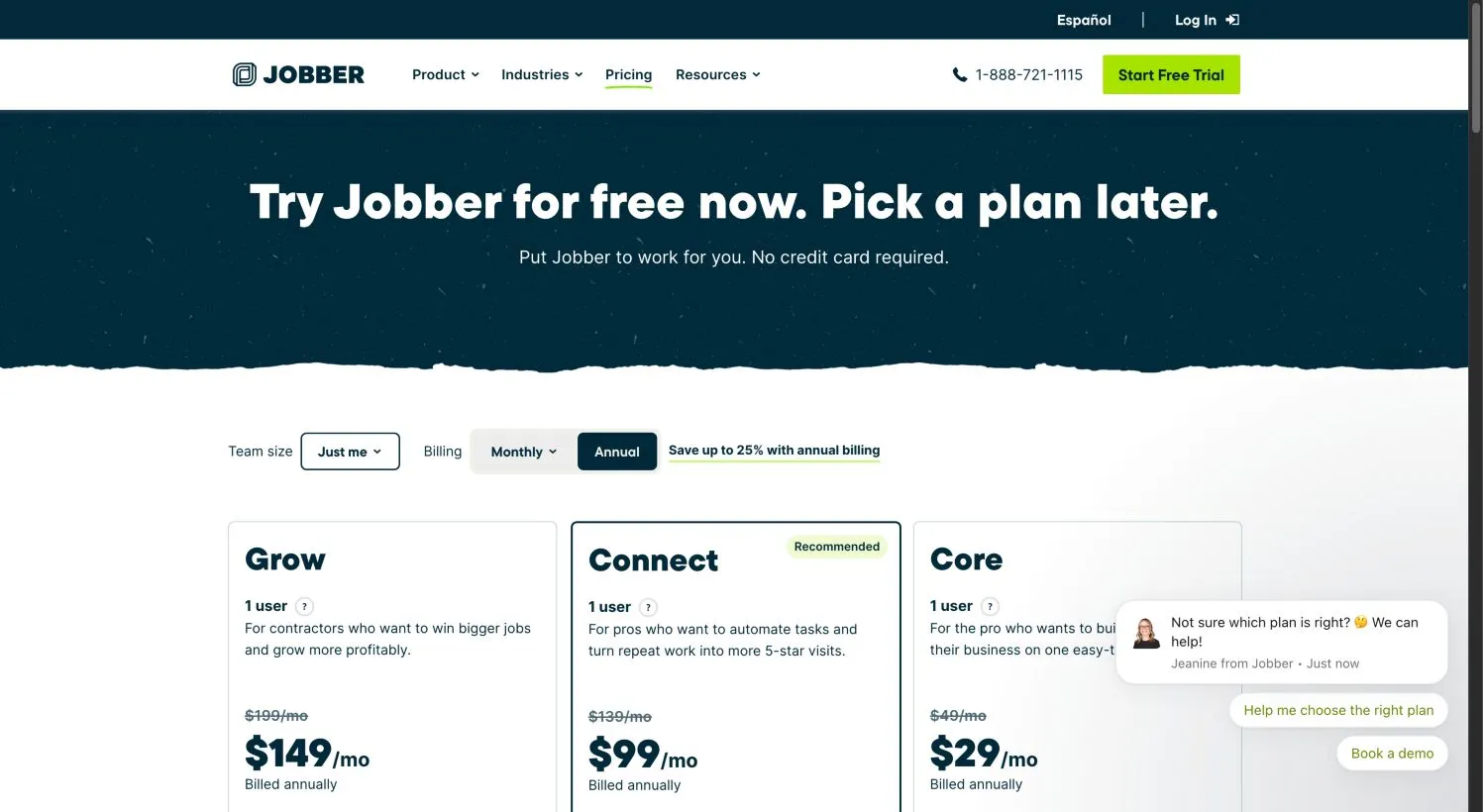
The consequence: if QuickBooks sync is the reason you came, compare starting at Connect, not at the headline $49 Core price that doesn’t carry the feature you need. Payment processing adds separate card and bank fees on top of your subscription.
QuickBooks Desktop: Housecall Pro pushes out, QB is a separate bill
Housecall Pro’s public QuickBooks page states support for both QuickBooks Online and Desktop, with customers, invoices, line items, and payments automatically pushed into QuickBooks. Initial setup can import your QuickBooks data. That outward flow is the clearest Desktop-compatible route we found in this research set.
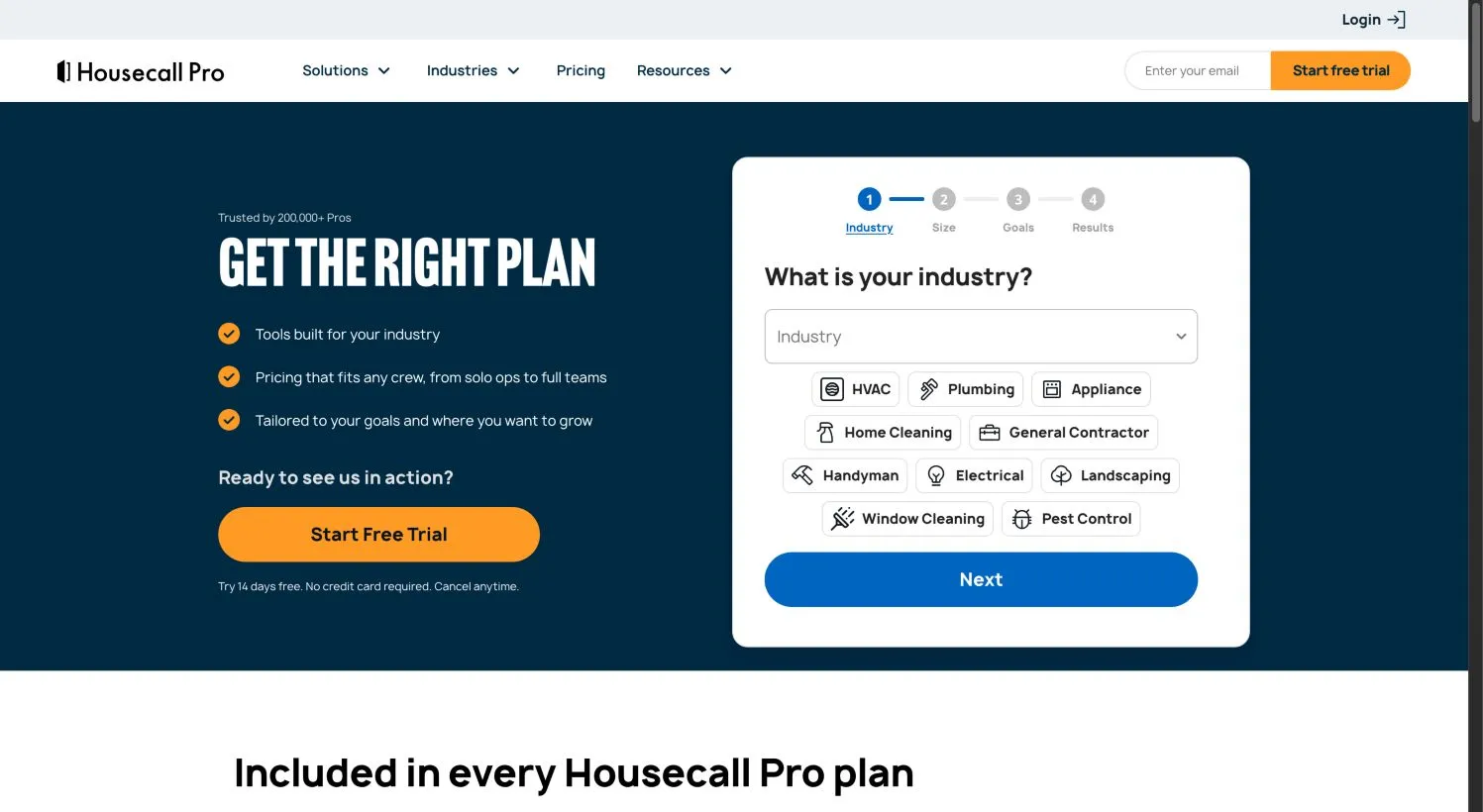
The boundary is the billing. Housecall Pro’s own FAQ says QuickBooks is not included in your Housecall Pro subscription. You pay for both. We also could not match the “from $59” figure in the current pricing page’s browser title to a specific plan, team size, or billing cadence. The page now routes you through an industry, team, and goals selector before showing tailored pricing, so treat Housecall Pro as a custom-quote candidate rather than a published-rate comparison.
What’s documented is direction and record scope. What’s unverified is whether every edit flows both directions or which Desktop versions stay current when Intuit releases an update. Put both questions in the pilot, not the shopping cart. If Housecall Pro and Jobber are your final two, our Jobber vs Housecall Pro comparison walks through the same dimensions side by side.
Larger shops: ServiceTitan’s edition support is there, the record parity is not
ServiceTitan’s accounting integrations page lists QuickBooks Online and QuickBooks Desktop among several supported accounting systems. That’s edition coverage. What we could not verify from public pages is the record list, the sync direction per record type, or which plan gate unlocks QuickBooks in the first place. ServiceTitan’s pricing is per-technician custom quoting with no published monthly rate, so the eligible starting tier is a sales conversation, not a web page.
The plan structure matters more than the price. The public pricing page shows Starter includes dispatching, scheduling, call booking, invoicing, and pricebook — but mobile estimates, payroll management, advanced reporting, commission tracking, and customizable memberships are greyed out. Essentials adds mobile estimates and payroll; The Works carries advanced reporting, commission tracking, and customizable memberships. If your reason for connecting QuickBooks is job costing and reporting, verify that the tier you’re quoted actually contains those tools. Greyed text on a pricing card is the vendor’s own exclusion, and reading the plain words misses it.
If you’re torn between a larger platform and a smaller one, our Jobber vs ServiceTitan comparison lays out both pricing shapes and integration questions side by side.
The free-boundary question
Two free-tier products showed up in our research, and they answer different questions.
Dusk FSM publishes a permanent free Launch plan for up to 25 completed work items per month, with unlimited staff and contractors, no credit card, and a feature list that includes an invoicing workflow and unlimited integration connectors — including QuickBooks Online. “Unlimited connectors” is not unlimited transaction capacity or proven field parity. It means the route exists; it does not mean every record reconciles cleanly at month end. Paid pricing above the 25-work cap was not established in this research. That’s a workable free entry point for light volume, not an argument for skipping the verification step.
FieldVibe runs a permanently free Solo plan for one user on one device with unlimited jobs and clients, but only manual reminders. Its paid Solo Pro ($20 per month) and Crews ($50 per month) add quoting, invoicing, payments, time tracking, and automated reminder counts. We found no QuickBooks connector in FieldVibe’s inspected public pages. That is a gap in our documentation, not categorical proof none exists — but do not assume a sync you haven’t confirmed. Our free field service software guide covers the job boundaries in more detail.
What the subscription doesn’t cover
You are pricing at least three bills, not one.
The field service subscription. Core: $49/month one user no commitment; Connect: $139 one user or $199 five users no commitment; Grow: $199 one user or $299 five users no commitment. Annual equivalents lower the monthly number but are prepaid estimates — for Connect at one user, the displayed $99 monthly equivalent becomes an estimated $1,188 per year, not an exact invoice total.
QuickBooks itself. Housecall Pro states this outright, and the same applies across the routes in this article: the accounting platform is a separate subscription. Sync software does not replace your QuickBooks bill.
Payment processing. Where the field service tool collects card or bank payments, processing fees apply on top of the plan. Treat the software subscription as the floor, not the total.
Here’s a bounded labor check. If hooking up QuickBooks would replace about 40 minutes a week of manual re-entry at a $30-per-hour bookkeeping rate, that’s roughly $1,040 per year in labor. That number is smaller than Jobber Connect’s $1,668 first-year total at one user on no commitment. The calculation does not include error correction or delayed invoices — those are real possibilities, but they’re yours to estimate. Run your own figures. The point is that “sync saves money” has a break-even you can actually calculate, and for very light volume the subscription may cost more than the labor it replaces.
Cutover: moving from double-entry to sync
Moving from manual entry or another tool to a synced setup can go wrong in a few predictable places. The sequence below forces those mapping decisions before they surface at month end.
- Pick one source of truth per record. Usually that’s the field tool for jobs, invoices, and payments; QuickBooks for final bookkeeping edits. Write it down.
- Clean the customer list first. Normalize names, addresses, and duplicates on both sides before the first sync. One “Jones & Sons” versus “Jones and Sons” mismatch is enough to fork a customer record.
- Map accounts and tax before pushing anything. Income accounts, sales tax items, and payment accounts need destinations in QuickBooks. Do this with a chart of accounts open, not blind.
- Run one labeled synthetic record in an isolated test or sandbox with a backup. Create a customer, an item, an invoice, mark it sent, sync, and inspect QuickBooks. Then record a payment and check where it lands — applied to the invoice, or parked in undeposited funds.
- Keep your old workflow alive until reconciliation comes back clean on the synthetic record. Don’t post duplicate live data into QuickBooks; run the pilot against a test copy or under your accountant’s supervision.
- Assign an owner to the sync-status habit. Someone needs to check on a schedule you’ll actually keep, not when the accountant asks where last month’s invoices went.
A synthetic transaction, from visit to reconciliation
Here’s the walkthrough in miniature. It’s fictional, so use it as a shape, not a promise.
Suppose you run a two-person gutter company. A customer calls about a downspout repair. You already have her in both systems. You dispatch the job from your field tool. The tech completes the work and enters two line items: two hours of labor at $90 and $45 in materials, for a $225 invoice. The tech marks it sent, closes the visit, and takes a card payment on site.
In a working outward sync, the customer record, invoice, line items, and payment all push into QuickBooks. Your bookkeeper opens QuickBooks and sees the invoice matched to the right customer, the payment applied, and the income account correct. Nothing was re-typed.
The failure paths sit just outside that sequence, and each one is a check to run rather than an assumption to make. What happens when a tech edits the invoice after your sync runs — does QuickBooks keep the old version, or re-push? Does marking an invoice sent in your tool actually trigger the sync, or is there a separate push step? If your bookkeeper changes a billing address in QuickBooks, does the field tool’s dispatch view stay stale? Where does a payment land — applied to the invoice, or sitting in undeposited funds? If an employee’s name differs between systems, does timesheet sync fail silently or surface an error?
Reconciliation checklist and where it breaks
We kept a blank checklist for exactly this close: quickbooks-sync-pilot.csv. Each row asks for a record type — customer, item, invoice, payment, timesheet — with columns for what you expected, what you observed, whether it passed, and how you resolved a failure. Leave observations blank during setup; fill them as you test. The point is to force every row to an explicit pass or fail instead of assuming “mostly works.”
A few failure points are worth checking in any first connection:
-
Duplicate customer. Both systems held a record before the first sync. Merge before launch, not after.
-
Payment sitting in undeposited funds.
-
Edit after sync. Decide the edit rule up front:
Each has a resolution path, but only if you surface it before it compounds. The checklist is what turns those from surprises into owned exceptions.
When staying put is the right answer
This is not a universal upgrade. Stay put when:
- Your volume is a handful of invoices a month and your current manual workflow closes cleanly. The subscription math above may not favor you.
- Your team won’t close jobs in the mobile app. The sync can only move records your team captures in the field tool. If adoption fails, you’ve bought a new data-entry job with a nicer-looking dashboard.
- You’re on QuickBooks Desktop with a tool that already pushes invoices and you reconcile weekly without pain. The friction you have may be smaller than a migration.
- Your accounting workflow is working for the person who closes the books. The technical sync is the easy part; the human process is the contract.
If after all this you’re unsure whether you even need QuickBooks sync as your organizing criterion, our broader home services software guide resets the decision from the top.
Your next move
- QuickBooks Online, small team, want published pricing: Start with Jobber Connect and run the reconciliation checklist on a single labeled record before committing.
- QuickBooks Desktop is non-negotiable: Get a written Housecall Pro quote that names the eligible tier, then confirm Desktop record parity in your pilot.
- Larger or multi-trade operation: Book the ServiceTitan demo and press for the record list, sync direction, and plan gate — not marketing language.
- Light volume, free start: Try Dusk FSM’s Launch plan knowing the 25-completed-work cap, then test the QBO connector yourself.
- FieldVibe curious: Ask the vendor for current QuickBooks documentation before assuming the free tier hands off to your books.
Method, sources, and how we know what we know
This article is documentation-based research, not hands-on account testing. We inspected public vendor pricing, feature, integration, and help pages directly through browser and extraction captures on October 18, 2026, for a US buyer in USD. We did not create paid accounts, execute imports, run timed usability tests, survey customers, or measure performance.
The most consequential scope distinction is Jobber’s. Its public legacy help article carries the banner that separates a new first-time connector from the legacy route the article itself documents. We followed that boundary and did not apply legacy two-way or manual-trigger descriptions to new accounts. The new connector’s full field-level parity — exactly how edits, refunds, and tax behavior flow — is unverified in this research, and we say so rather than inventing it.
Housecall Pro’s claim that customers, invoices, line items, and payments push into QuickBooks for both Online and Desktop comes from its public QuickBooks feature page. ServiceTitan’s edition support comes from its accounting integrations page; record-level parity and plan gating for sync remain unverified. Dusk FSM’s free Launch plan details come from its public free-software page, with field-level QuickBooks parity and paid growth pricing unverified. FieldVibe’s inspected public sources contained no QuickBooks connector documentation, which we treat as unknown rather than absent.
For fuller product assessment, see our Jobber review and the Jobber vs Housecall Pro comparison. Our how we pick page explains the broader editorial method.
Disclosure and corrections
OSI Affiliate is an independent editorial publication. We may earn a commission when readers buy through some links on this page, which is how the site is funded. Commissions never influence inclusion, order, recommendation, or caveat. Learn more about who we are and how we pick.
Prices, plan limits, integration scope, and packaging change. We reviewed the volatile facts above on October 18, 2026. If you find something wrong or outdated, contact us through the site so we can correct the record — particular thanks for any current QuickBooks sync field you can document from a live account, since that is exactly the evidence this page could not reach.

Written by
OSI Affiliate Reviews DeskEditorial team
Business-software reviews, comparisons and buying guides for small teams. We compare vendor documentation and pricing, explain the limits of our evidence, and identify affiliate links. Each guide states whether it includes account testing, public demos or documentation research.